Connectivity
Bluetooth, USB, and smartphone integration
Most connection problems come from a few repeatable causes: stale pairings, the wrong cable, or a permission prompt that was dismissed. These guides walk through each one.
- 01
Pairing a phone over Bluetooth
A clean first pairing avoids most dropouts later.
- Park the vehicle before starting. Many systems lock pairing menus while moving.
- Turn on Bluetooth on the phone and open the vehicle's phone or connections menu.
- Confirm the matching code shown on both screens.
- Allow contact and message access only if you plan to use them.
- 02
Fixing a phone that keeps disconnecting
Clearing old pairings on both sides usually resolves repeat dropouts.
- Remove the vehicle from the phone's saved devices list.
- Delete the phone from the vehicle's device list.
- Restart the phone, then pair again from scratch.
- Check for phone and vehicle software updates if the issue returns.
- 03
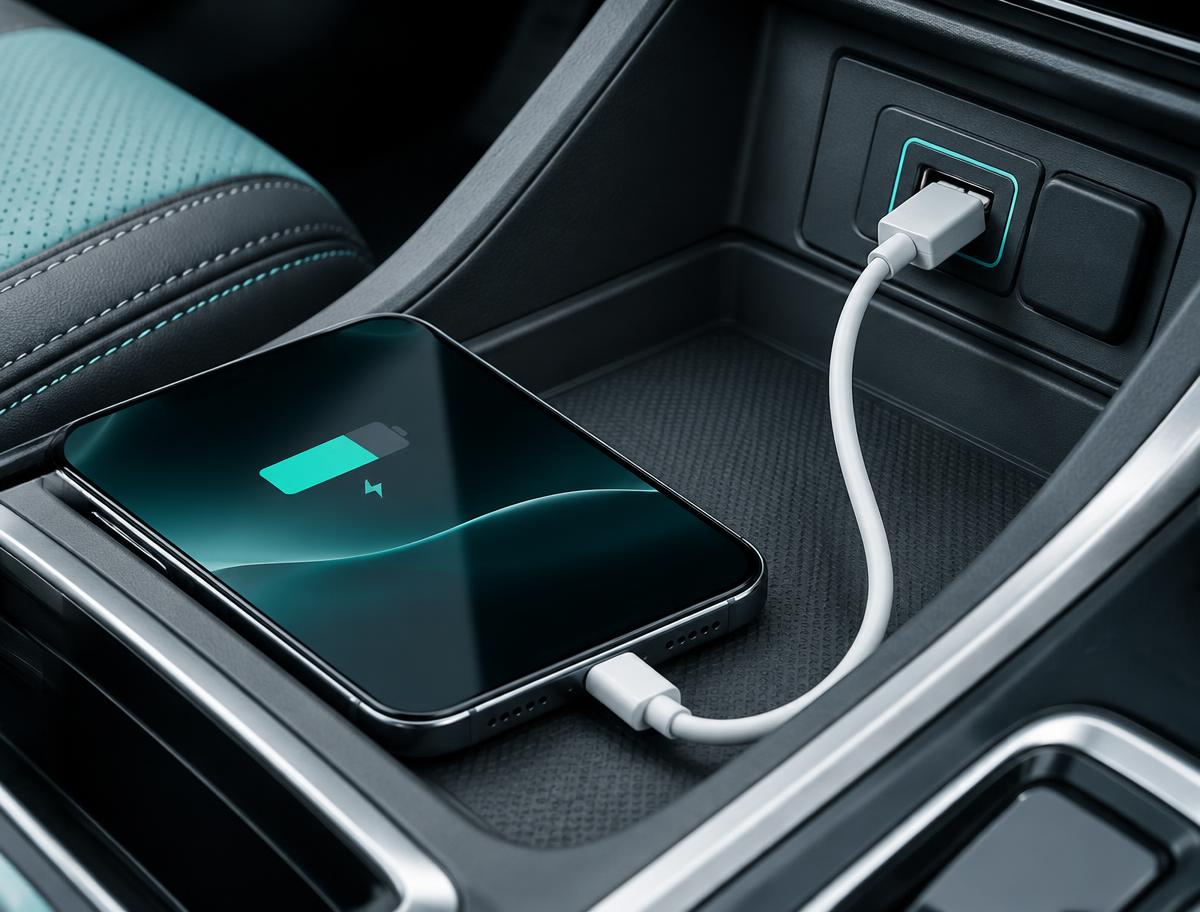
Choosing the right USB cable and port
Wired smartphone integration needs a data cable, not a charge only cable.
- Use the port marked with a phone or data icon. Some ports only charge.
- Try a short, undamaged data cable from a reputable source.
- Unlock the phone the first time you connect so it can show the permission prompt.
- 04
Setting up smartphone integration
Phone projection systems mirror selected apps on the vehicle display.
- Confirm your vehicle and phone both support the projection system you want to use.
- Connect by USB first, even if wireless is supported, to complete initial setup.
- Accept the prompts on the phone and on the vehicle screen.
- Rearrange or hide apps from the phone's settings to reduce clutter.
Want reminders like these by text? Get Cabin Tech Tips. It is optional.